

« Installing QuackScript | Help | Playing MP3s »
Setting Up QuackScript
If you haven't done so already, double click on the QuackScript icon on your desktop (if you have one, if not look in your Start Menu for the QuackScript group and click on the icon there).

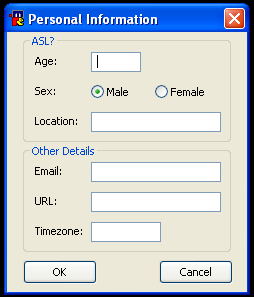
If this is your first time running QuackScript, you will be asked for some simple details which will allow you to use some of the popups later on (you can change these at any time!)
Just enter your age, gender, location, email address and URL in the boxes.
Enter your timezone, it's best to use the 3 letter code (eg PST, EST, GMT etc).
Click OK when you're done.
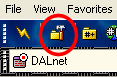
After you've completed those questions, you will need to set up some mIRC options, so click on the Options icon on the toolbar as shown in the picture marked in red.
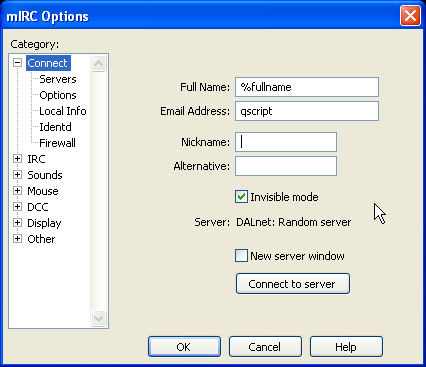
Please leave the Full Name as %fullname, and change it later in the Message Editor (shown below).
It's probably best not to use your real email address here, but just put in what you'd like to appear as your ident, you don't need an domain.com, just a word. (e.g. qscript). NINE CHARACTER MAXIMUM mIRC is set up to take whatever you've put in Email Address as your ident, so be careful.
Enter your nickname and an alternate nick if the first one is taken.
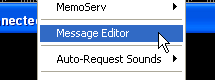
Back to that Full Name option I mentioned earlier. Click on QuackScript then choose Message Editor from the menu. You can see this below.
After you click on that, the box below appears.
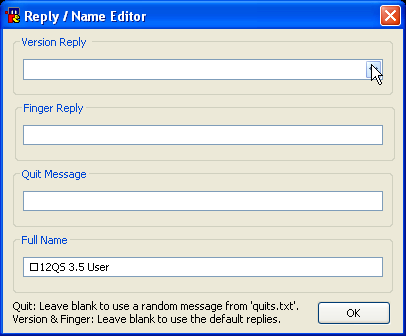
This is where you can set your Full Name (with or without any colour codes), your additional Finger reply, and your Quit message.
If you leave the Quit Message box empty, then the script will choose a random message from the quits.txt file. Finger requests will use the mIRC defaults if you leave the box empty.
NOTE: The version reply option has been removed since this screenshot was taken.
You are now ready to connect.